BLE Transport
Bluetooth Low Energy is the most common transport for in-person mDoc presentations. Two people standing near each other, one with a wallet app, one with a verifier app, exchanging credential data over Bluetooth. No internet connection required.
The IDK handles the full BLE lifecycle: advertising or scanning for services, connecting, negotiating MTU, fragmenting large messages across GATT characteristics, encrypting everything with the session keys from engagement, and tearing down cleanly when done. As a developer, you interact with the engagement manager and transfer manager; the BLE transport runs underneath.
How BLE Modes Work
ISO 18013-5 defines two BLE modes, and which one gets used depends on who advertises and who scans:
| Mode | Who advertises | Who scans and connects | Typical use |
|---|---|---|---|
| Central Client | The verifier (reader) | The holder (wallet) | Holder shows QR, verifier scans it, holder connects to verifier's BLE service |
| Peripheral Server | The holder (wallet) | The verifier (reader) | Holder advertises a BLE service, verifier connects to it |
The naming can be confusing because "central" and "peripheral" refer to BLE roles, not mDoc roles. In Central Client mode, the holder's device acts as the BLE central (it initiates the connection), and the verifier acts as the BLE peripheral (it advertises). In Peripheral Server mode, it's the other way around.
In practice, most implementations enable both modes and let the engagement negotiation decide. When you create an engagement with centralClientMode = true and peripheralServerMode = true, the device engagement advertises both options and the verifier picks one.
GATT Characteristics
BLE data transfer happens through specific GATT characteristics defined by the spec. The holder and verifier each have their own service with different UUIDs, so both sides can coexist on the same device.
Holder service (the wallet's GATT service):
| Characteristic | UUID | Purpose |
|---|---|---|
| State | 00000001-A123-48CE-896B-4C76973373E6 | Connection state control (start, terminate) |
| Client2Server | 00000002-A123-48CE-896B-4C76973373E6 | Data from reader to holder |
| Server2Client | 00000003-A123-48CE-896B-4C76973373E6 | Data from holder to reader |
Reader service (the verifier's GATT service):
| Characteristic | UUID | Purpose |
|---|---|---|
| State | 00000005-A123-48CE-896B-4C76973373E6 | Connection state control |
| Client2Server | 00000006-A123-48CE-896B-4C76973373E6 | Data from reader to holder |
| Server2Client | 00000007-A123-48CE-896B-4C76973373E6 | Data from holder to reader |
| Ident | 00000008-A123-48CE-896B-4C76973373E6 | HKDF-based device identification |
The Ident characteristic is only on the reader service. It's used for the reader to prove it knows the engagement parameters (via an HKDF-derived value), which prevents a rogue device from connecting to the holder and pretending to be the legitimate verifier.
You don't interact with these characteristics directly. The IDK's BleCentralClientTransport and BlePeripheralServerTransport manage GATT service discovery, characteristic reads/writes, and notification subscriptions internally.
Connection Method Configuration
When creating an engagement, you configure BLE through BleConnectionMethod and its BleOptions:
engagementManager.createEngagement {
    engagement { qr { } }
    retrieval {
        ble {
            centralClientMode = true
            peripheralServerMode = true
            // UUIDs are managed by SharedParameters automatically
        }
    }
}
Enabling both modes makes your app compatible with more verifiers. The device engagement CBOR advertises both options, and the verifier chooses one based on its own capabilities.
Combining and splitting connection methods
The BleConnectionMethod class has two utility methods for when you're working with connection methods programmatically:
combine()merges twoBleConnectionMethodinstances into one that supports both modes. Useful when you receive separate BLE methods from different sources and want to present them as a single option.disambiguate()splits a dual-mode method into separate single-mode instances. The transport layer uses this internally to pick the right transport implementation (central or peripheral) for the current connection.
Data Channels
Under the hood, BLE data exchange goes through two channel interfaces:
-
BleIncomingDataChannelreceives data from the remote device. It has methods likereceiveSessionEstablishment()(for the first message that sets up the encrypted session) andreceiveSessionData()(for subsequent encrypted messages). It also supportsawaitExternalTermination()to wait for the other side to disconnect. -
BleOutgoingDataChannelsends data to the remote device. It hassendSessionEstablishment(),sendSessionData(), andsendEndMessage()for clean termination.
These channels handle message fragmentation automatically. BLE has a maximum transfer unit (MTU) that's typically 20-512 bytes per write, but mDoc messages (especially those containing portrait photos) can be much larger. The channels split outgoing messages into chunks with START/MIDDLE/LAST frame headers and reassemble incoming chunks back into complete messages.
Service UUIDs
Each BLE session uses unique service UUIDs so that the verifier can find the right holder among potentially many BLE devices in the area. These UUIDs are managed by the engagement manager's SharedParameters:
- Android/Kotlin
- iOS/Swift
val sharedParams = engagementManager.sharedParameters

// Each mode has its own UUID
val centralUuid = sharedParams.bleCentralClientUuid.value
val peripheralUuid = sharedParams.blePeripheralServerUuid.value

// Generate fresh UUIDs for the next session
sharedParams.regenerate()

// Some verifier implementations expect both modes to use the same UUID
sharedParams.useSameUuidForBothModes()
let sharedParams = engagementManager.sharedParameters

let centralUuid = sharedParams.bleCentralClientUuid.value
let peripheralUuid = sharedParams.blePeripheralServerUuid.value

sharedParams.regenerate()
sharedParams.useSameUuidForBothModes()
The UUIDs are embedded in the device engagement (the QR code or NFC message), so the verifier knows exactly which BLE service to look for. Call regenerate() between sessions to prevent UUID reuse.
Checking BLE Availability
After receiving an engagement (e.g., from a QR scan), check whether BLE is among the offered transports:
- Android/Kotlin
- iOS/Swift
val engagement = engagementManager.activeEngagement.value
val methods = engagement?.getRetrievalMethods() ?: emptySet()

for (method in methods) {
    if (method is DeviceRetrievalMethod.Ble) {
        println("BLE available")
        println("  Central client: ${method.centralClientMode}")
        println("  Peripheral server: ${method.peripheralServerMode}")
    }
}
let engagement = engagementManager.activeEngagement.value
let methods = engagement?.getRetrievalMethods() ?? []

for method in methods {
    if let ble = method as? DeviceRetrievalMethod.Ble {
        print("BLE available")
        print("  Central client: \(ble.centralClientMode)")
        print("  Peripheral server: \(ble.peripheralServerMode)")
    }
}
In most cases you don't need to check this manually. The IDK picks the best available transport when you call engagement.start(). But it's useful for UIs that want to show the user which transport is being used.
Android Setup
Manifest permissions
<uses-permission android:name="android.permission.BLUETOOTH" />
<uses-permission android:name="android.permission.BLUETOOTH_ADMIN" />
<uses-permission android:name="android.permission.BLUETOOTH_CONNECT" />
<uses-permission android:name="android.permission.BLUETOOTH_ADVERTISE" />
<uses-permission android:name="android.permission.BLUETOOTH_SCAN" />

<!-- Required for BLE scanning on Android 6-11 -->
<uses-permission android:name="android.permission.ACCESS_FINE_LOCATION" />

<uses-feature
    android:name="android.hardware.bluetooth_le"
    android:required="false" />
Set android:required="false" on the feature declaration so your app can still be installed on devices without BLE (it just won't be able to use this transport).
Runtime permissions
Android 12 (API 31) introduced new Bluetooth permissions that replaced the location permission for BLE operations. You need to request the right set at runtime depending on the API level:
private val requiredPermissions = if (Build.VERSION.SDK_INT >= Build.VERSION_CODES.S) {
    arrayOf(
        Manifest.permission.BLUETOOTH_CONNECT,
        Manifest.permission.BLUETOOTH_SCAN,
        Manifest.permission.BLUETOOTH_ADVERTISE
    )
} else {
    arrayOf(
        Manifest.permission.ACCESS_FINE_LOCATION
    )
}
Request these before creating any BLE engagement. If the user denies them, BLE won't work and you should fall back to a different transport or show an explanation.
iOS Setup
Add these to your Info.plist:
<key>NSBluetoothAlwaysUsageDescription</key>
<string>This app uses Bluetooth to transfer credentials</string>

<key>NSBluetoothPeripheralUsageDescription</key>
<string>This app uses Bluetooth to transfer credentials</string>

<key>UIBackgroundModes</key>
<array>
    <string>bluetooth-central</string>
    <string>bluetooth-peripheral</string>
</array>
The background modes are needed if you want BLE to keep working when the user switches to another app mid-transfer. Without them, iOS will suspend BLE operations when the app goes to the background.
Connection Flow
Central Client mode
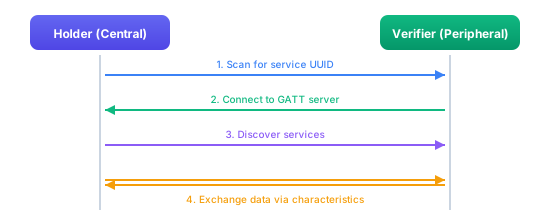
In this mode, the holder scans for the verifier's BLE service UUID, connects, discovers GATT characteristics, and starts the data exchange. The verifier advertises and waits.
Peripheral Server mode
The roles are reversed: the holder advertises a GATT service, and the verifier scans for it and connects. This mode is used when the verifier initiates the flow (e.g., reverse engagement where the verifier shows a QR code).
Disconnect behavior
Per ISO 18013-5, the reader is responsible for initiating the BLE disconnect after a transfer completes. The IDK respects this: when you close a holder-side engagement, it waits for the reader to disconnect first rather than dropping the connection immediately. This prevents the verifier from getting an unexpected disconnect before it has finished processing the response.
Monitoring Connection State
The event hub gives you real-time connection state updates. These are the same events from the Events and UI page, but here's what they look like for a BLE flow specifically:
- Android/Kotlin
- iOS/Swift
engagementManager.eventHub.engagementEvents.collect { event ->
    when (event.state) {
        is MdocEngagementState.Connecting -> {
            // BLE scanning or advertising has started
            showMessage("Connecting via Bluetooth...")
        }
        is MdocEngagementState.Connected -> {
            // GATT service discovered, characteristics ready
            showMessage("Connected via Bluetooth")
        }
        is MdocEngagementState.Error -> {
            val error = (event.state as MdocEngagementState.Error).error
            showMessage("Bluetooth error: ${error.message}")
        }
    }
}
for await event in engagementManager.eventHub.engagementEvents {
    switch event.state {
    case .connecting:
        showMessage(text: "Connecting via Bluetooth...")
    case .connected:
        showMessage(text: "Connected via Bluetooth")
    case .error(let error):
        showMessage(text: "Bluetooth error: \(error.message)")
    default:
        break
    }
}
The Connecting state can last a few seconds while BLE scanning or advertising is in progress. Show a spinner or similar indicator so the user knows something is happening.
Troubleshooting
| Problem | Likely cause | What to do |
|---|---|---|
| Verifier can't find the holder | UUID mismatch between engagement and BLE service | Make sure the engagement data matches the advertised UUIDs. Call sharedParams.regenerate() if reusing a stale session. |
| Connection drops immediately | Devices too far apart, or interference | Move within 2-3 meters. Walls and other Bluetooth devices cause interference. |
| Transfer is very slow | Low MTU or congested radio environment | MTU is negotiated automatically. Large payloads (portrait photos) can take 5-10 seconds over BLE. |
| Works on some Android phones but not others | Manufacturer-specific BLE stack bugs | Test on multiple devices. Samsung, Pixel, and Xiaomi all have slightly different BLE behavior. |
| Works in foreground but not background (iOS) | Missing background modes in Info.plist | Add bluetooth-central and bluetooth-peripheral to UIBackgroundModes. |
| Permission denied at runtime | User denied Bluetooth permissions | Show an explanation screen and re-request, or fall back to a different transport. |
Tips
- Enable both central and peripheral modes unless you have a specific reason not to. This maximizes compatibility with different verifier implementations.
- Call
sharedParams.regenerate()between presentations. Reusing UUIDs can cause stale connections from the previous session. - Test on physical devices. BLE on emulators is unreliable at best and completely broken at worst.
- Keep the transfer UI active during BLE exchange. If the user locks their phone or switches apps, iOS may suspend BLE operations.
- For credentials with photos, expect the BLE transfer to take several seconds. Show a progress indicator rather than a blank screen.