NFC Transport
NFC gives you the tap-and-go experience: the holder taps their phone on a reader, and the credential exchange starts instantly. No QR code scanning, no Bluetooth pairing. It's the fastest way to initiate an mDoc presentation.
In the IDK, NFC is primarily used for engagement (the initial handshake), not for the full data transfer. After the NFC tap establishes the connection parameters, the actual credential data flows over BLE. This NFC-to-BLE handover pattern gives you the speed of NFC for initiation and the bandwidth of BLE for the payload.
NFC Roles in mDoc
NFC plays three distinct roles in the mDoc protocol, and it's important to understand which one applies to your use case:
| Role | What happens | When to use |
|---|---|---|
| NFC Engagement | The NFC tap exchanges device engagement data (ephemeral keys, transport options). Data transfer happens over BLE. | Most common. Fast initiation, no QR code needed. |
| NFC Data Transfer | The entire credential exchange happens over NFC APDUs. | Defined in the spec, but slow for large payloads. The IDK's NFC data transfer is a stub; use NFC-to-BLE handover instead. |
| NFC-to-BLE Handover | NFC handles engagement, then the connection hands off to BLE for the actual transfer. | The recommended pattern. Combines the best of both transports. |
How NFC-to-BLE Handover Works
This is the flow most wallet apps implement:
- The holder's phone advertises an NFC service (via Host Card Emulation on Android).
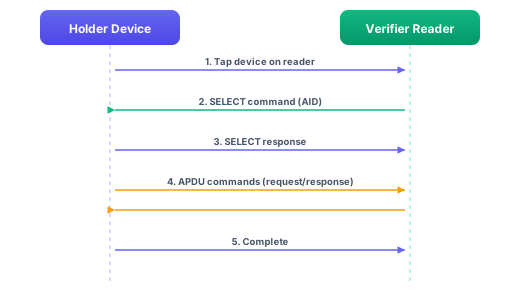
- The verifier's reader detects the phone and sends a SELECT APDU with the mDoc AID (
A0000002480400). - The holder's HCE service responds with device engagement data, including BLE connection parameters.
- The verifier extracts the BLE UUIDs from the engagement and starts scanning for the holder's BLE service.
- A BLE connection is established, and the rest of the transfer proceeds over Bluetooth.
From the user's perspective, they tap their phone and the credential appears on the verifier's screen a few seconds later. The NFC-to-BLE transition is invisible.
The IDK's AbstractMdocNfcService handles steps 1-3 automatically. It creates the engagement, prepares BLE parameters, and starts the BLE GATT service in the background during the NFC exchange so that by the time the handover completes, BLE is ready for the verifier to connect.
NFC Engagement Flow (Android)
On the holder side, you observe the nfcEngagement state flow on the engagement manager. When an NFC tap happens, the IDK creates an engagement instance and emits it. This flow is Android-only since iOS does not support NFC card emulation for holders (see iOS Setup below).
- Android/Kotlin
- iOS/Swift
lifecycleScope.launch {
    engagementManager.nfcEngagement.collect { engagement ->
        if (engagement != null) {
            // An NFC tap just happened and the engagement is ready
            engagement.events.collect { event ->
                when (event.state) {
                    is MdocEngagementState.Connected -> {
                        // BLE connection established after handover
                        val transferManager = engagement.start()
                        handleTransfer(transferManager)
                    }
                }
            }
        }
    }
}
Task {
    for await engagement in engagementManager.nfcEngagement {
        guard let engagement = engagement else { continue }

        for await event in engagement.events {
            switch event.state {
            case .connected:
                let transferManager = try await engagement.start()
                try await handleTransfer(transferManager: transferManager)
            default:
                break
            }
        }
    }
}
Notice that you wait for the Connected state before starting the transfer. The Connected event fires after the BLE handover completes, not after the NFC tap itself. The NFC tap triggers Initializing and then Connecting; Connected means BLE is up and ready.
Android Setup
Host Card Emulation (HCE)
Android uses Host Card Emulation to make the phone act like a contactless smart card. When a verifier's NFC reader sends a SELECT command with the mDoc AID, Android routes it to your HCE service.
Manifest
<uses-permission android:name="android.permission.NFC" />
<uses-feature android:name="android.hardware.nfc" android:required="false" />
<uses-feature android:name="android.hardware.nfc.hce" android:required="false" />

<application>
    <service
        android:name=".MdocNfcService"
        android:exported="true"
        android:permission="android.permission.BIND_NFC_SERVICE">
        <intent-filter>
            <action android:name="android.nfc.cardemulation.action.HOST_APDU_SERVICE" />
        </intent-filter>
        <meta-data
            android:name="android.nfc.cardemulation.host_apdu_service"
            android:resource="@xml/mdoc_nfc_service" />
    </service>
</application>
The BIND_NFC_SERVICE permission ensures only the system can bind to your service. The exported="true" is required for Android to route NFC events to it.
AID registration
Create res/xml/mdoc_nfc_service.xml:
<host-apdu-service xmlns:android="http://schemas.android.com/apk/res/android"
    android:description="@string/nfc_service_description"
    android:requireDeviceUnlock="true">
    <aid-group
        android:category="other"
        android:description="@string/nfc_aid_description">
        <aid-filter android:name="A0000002480400" />
    </aid-group>
</host-apdu-service>
The AID A0000002480400 is the registered application identifier for mDoc per ISO 18013-5. When a reader selects this AID, Android routes the APDU to your HCE service.
Setting requireDeviceUnlock="true" means the phone must be unlocked for the NFC service to respond. This is a security measure: you don't want credentials being shared from a locked phone.
AbstractMdocNfcService
Your HCE service should extend AbstractMdocNfcService, which handles the APDU protocol, engagement creation, and BLE handover:
class MdocNfcService : AbstractMdocNfcService() {
    override val sessionGraph: SessionGraph
        get() = // your IDK session graph

    override val apduService: NfcApduDispatcher
        get() = // the APDU dispatcher
}
The base class takes care of several tricky timing issues:
- First tap: Creates a new NFC engagement with BLE transport. Starts the BLE GATT service in the background so it's ready by the time the handover completes. Returns APDU responses to the reader.
- Short-tap recovery: If the NFC connection drops (the user lifted their phone too early) and they tap again within 30 seconds, the service reuses the existing engagement instead of starting over. This is per ISO 18013-5. Without it, a brief interruption would force the user to start the whole flow again.
- BLE handover: Once the NFC handover messages are complete, the reader switches to BLE. The NFC service deactivates and the BLE transport continues the session.
The 30-second window is important for real-world usability. NFC connections are fragile: a slight movement can break contact. The recovery mechanism means the user just needs to tap again and the flow continues from where it left off.
iOS Setup
Info.plist
<key>NFCReaderUsageDescription</key>
<string>Present your credentials via NFC tap</string>

<key>com.apple.developer.nfc.readersession.formats</key>
<array>
    <string>TAG</string>
</array>

<key>com.apple.developer.nfc.readersession.iso7816.select-identifiers</key>
<array>
    <string>A0000002480400</string>
</array>
Entitlements
Add the NFC Tag Reading capability in your Xcode project's Signing & Capabilities tab. Without this entitlement, the NFC APIs won't be available at runtime.
Apple does not provide Host Card Emulation (HCE) on iOS. The NFC APIs on iOS only support reader mode, which means an iOS device can act as an mDoc verifier/reader (sending SELECT APDUs and reading responses), but it cannot act as an mDoc holder over NFC.
On Android, the holder's wallet app uses HCE to respond to the verifier's NFC reader. On iOS, this is not possible. An iOS wallet app can still present credentials via QR + BLE or via deep links (TO_APP), but it cannot respond to an NFC tap from a verifier's reader terminal.
If you're building a verifier app on iOS, NFC works fine: you can read mDoc device engagement from a holder's Android phone. If you're building a holder/wallet app on iOS, NFC engagement is not available. Use QR code or deep link engagement instead, with BLE for the data transfer.
The Info.plist entries above configure iOS for NFC reader mode (verifier side). They are not needed for holder-only wallet apps on iOS.
NFC Protocol Flow
Monitoring NFC State
The event hub reports NFC-related state changes. Here's what a typical NFC-to-BLE handover looks like from the event stream:
- Android/Kotlin
- iOS/Swift
engagementManager.eventHub.engagementEvents.collect { event ->
    when (event.state) {
        is MdocEngagementState.Initializing -> {
            // NFC service is ready, waiting for tap
        }
        is MdocEngagementState.Connecting -> {
            // NFC tap detected, handover in progress
            showMessage("NFC detected, connecting via Bluetooth...")
        }
        is MdocEngagementState.Connected -> {
            // BLE connection established
            showMessage("Connected")
        }
        is MdocEngagementState.Transferring -> {
            // Data exchange in progress over BLE
            showMessage("Sharing credentials...")
        }
        is MdocEngagementState.Completed -> {
            showMessage("Done")
        }
        is MdocEngagementState.Error -> {
            showMessage("Something went wrong")
        }
    }
}
for await event in engagementManager.eventHub.engagementEvents {
    switch event.state {
    case .initializing:
        break // waiting for tap
    case .connecting:
        showMessage(text: "NFC detected, connecting via Bluetooth...")
    case .connected:
        showMessage(text: "Connected")
    case .transferring:
        showMessage(text: "Sharing credentials...")
    case .completed:
        showMessage(text: "Done")
    case .error:
        showMessage(text: "Something went wrong")
    default:
        break
    }
}
The transition from Connecting to Connected is the NFC-to-BLE handover. If you're showing UI during this, a message like "NFC detected, connecting via Bluetooth..." helps the user understand they can move their phone away from the reader once the Bluetooth connection is up.
NFC-to-BLE Handover in Detail
When you create an NFC engagement with BLE retrieval, the handover is automatic. But it helps to know what's happening so you can debug issues:
- Android/Kotlin
- iOS/Swift
lifecycleScope.launch {
    engagementManager.nfcEngagement.collect { engagement ->
        if (engagement != null) {
            // At this point:
            // 1. NFC tap happened
            // 2. Device engagement was sent to the reader via NFC
            // 3. BLE GATT service is starting in the background

            val methods = engagement.getRetrievalMethods()
            val hasBle = methods.any { it is DeviceRetrievalMethod.Ble }

            if (hasBle) {
                // The reader will now scan for our BLE service
                // and connect. We wait for the Connected event.
            }
        }
    }
}
Task {
    for await engagement in engagementManager.nfcEngagement {
        guard let engagement = engagement else { continue }

        let methods = engagement.getRetrievalMethods()
        let hasBle = methods.contains(where: { $0 is DeviceRetrievalMethod.Ble })

        if hasBle {
            // Reader will scan for our BLE service and connect
        }
    }
}
A common pitfall: if the BLE GATT service isn't ready by the time the reader tries to connect, the handover fails. The IDK handles this by starting BLE setup in the background during the NFC exchange (before the handover is complete), so there's no gap. But if BLE permissions haven't been granted, or Bluetooth is turned off, the handover will fail with an error event.
Large Payloads and NFC Bandwidth
Pure NFC data transfer (without BLE handover) is slow. NFC operates at 424 kbit/s, and with APDU overhead, actual throughput is much lower. A credential with a portrait photo (50-100 KB) would take several seconds over NFC alone, during which both devices must stay in contact.
This is why NFC-to-BLE handover is the recommended approach. BLE throughput (depending on MTU and connection parameters) is typically 10-50x faster than NFC for bulk data.
If you must use pure NFC transfer (e.g., for a terminal that has no BLE), keep these limits in mind:
- The user must hold their phone against the reader for the entire transfer duration
- Show a clear progress indicator so they know not to pull away
- Keep the payload small by requesting only essential elements (skip
portraitif possible)
Troubleshooting
| Problem | Likely cause | What to do |
|---|---|---|
| Tap does nothing | AID not registered, or another app has priority for the same AID | Check mdoc_nfc_service.xml and verify the AID matches A0000002480400. On Android, go to Settings > NFC > Contactless payments to see which app handles the AID. |
| Tap works but BLE never connects | Bluetooth is off, or permissions not granted | Check BluetoothAdapter.isEnabled() and request BLE permissions before enabling NFC engagement. |
| Tap works once, then stops | Previous engagement not cleaned up | Call engagementManager.closeNfcEngagement() after each transfer, or enable auto-restart. |
| Handover fails intermittently | User lifts phone too early | The 30-second recovery window handles this, but if the user waits longer than 30 seconds, the engagement expires. Show a "tap again" message. |
| HCE not active in background | Android power management killed the service | Set android:stopWithTask="false" on the service, and consider requesting battery optimization exemption for critical use cases. |
| NFC works on Android but not iOS | iOS card emulation restrictions | iOS NFC card emulation requires specific Apple entitlements. Check current Apple developer documentation for availability. |
Tips
- Always pair NFC with BLE retrieval. Pure NFC data transfer is too slow for most real-world credentials.
- Enable auto-restart on the engagement manager so the NFC service is immediately ready after each transfer completes.
- Test the short-tap recovery by deliberately pulling the phone away mid-handover. The user should be able to tap again and continue.
- Show clear UI during the handover transition. "Hold near reader" while NFC is active, then "Connected via Bluetooth" once BLE takes over.
- Request BLE permissions at app startup, not when the NFC tap happens. The tap-to-connect window is tight, and a permission dialog in the middle will kill the flow.