Transfer Manager
The TransferManager handles the second phase of the mDoc protocol: the actual exchange of credential data. After engagement establishes how to communicate, the transfer manager takes over to receive the verifier's request, build a signed response from the holder's credentials, and send it back.
You get a TransferManager by calling start() on an EngagementInstance. It lives for the duration of one transfer and should not be reused.
Obtaining the Transfer Manager
- Android/Kotlin
- iOS/Swift
val engagement = engagementManager.activeEngagement.value!!

// Exception-based
val transferManager: TransferManager = engagement.start()

// Result-based (no exceptions)
val result = engagement.tryOps().start()
let engagement = engagementManager.activeEngagement.value!

let transferManager = try await engagement.start()

// Or result-based
let result = try await engagement.tryOps().start()
start() sets up session encryption (ECDH key agreement, HKDF key derivation, AES-256-GCM), connects the transport, and begins listening for incoming data. From this point, all communication with the verifier is encrypted.
Receiving the Device Request
Once the transfer is running, the first thing to do is wait for the verifier's DeviceRequest. This is a blocking call that returns when the request arrives over the transport (BLE, NFC, HTTP, or OID4VP).
- Android/Kotlin
- iOS/Swift
val deviceRequest: DeviceRequest = transferManager.receiveDeviceRequest()
let deviceRequest = try await transferManager.receiveDeviceRequest()
A DeviceRequest contains one or more DocRequest entries, each specifying a document type and the data elements the verifier wants. You'll typically iterate over these to build a consent screen:
- Android/Kotlin
- iOS/Swift
for (docRequest in deviceRequest.docRequests) {
    println("Document type: ${docRequest.docType}")

    for ((namespace, elements) in docRequest.itemsRequest.nameSpaces) {
        for ((elementId, intentToRetain) in elements) {
            println("  $namespace / $elementId (retain: $intentToRetain)")
        }
    }
}
for docRequest in deviceRequest.docRequests {
    print("Document type: \(docRequest.docType)")

    for (namespace, elements) in docRequest.itemsRequest.nameSpaces {
        for (elementId, intentToRetain) in elements {
            print("  \(namespace) / \(elementId) (retain: \(intentToRetain))")
        }
    }
}
The intentToRetain flag tells you whether the verifier plans to store the data element beyond this session. You may want to highlight this to the user or apply stricter consent rules for retained elements.
Validating Reader Authentication
Before showing the consent screen, you can check whether the verifier signed its request. Reader authentication is optional in ISO 18013-5, but when present, the DocRequest includes a COSE_Sign1 signature that proves the verifier's identity.
- Android/Kotlin
- iOS/Swift
val isValid = transferManager.validateReaderAuthentication(
    docRequest = docRequest,
    requireReaderAuthentication = true
)

if (!isValid) {
    showWarning("Could not verify the verifier's identity")
}
let isValid = try await transferManager.validateReaderAuthentication(
    docRequest: docRequest,
    requireReaderAuthentication: true
)
Set requireReaderAuthentication to true if your policy mandates it. When set to false, the method returns true even if no reader authentication is present (it only fails on invalid signatures).
Creating and Sending the Response
The simplest path is createResponse, which takes the request and a document provider, applies selective disclosure, signs the documents with the device key, and returns a complete DeviceResponse ready to send.
- Android/Kotlin
- iOS/Swift
val deviceResponse = transferManager.createResponse(
    deviceRequest = deviceRequest,
    documentProvider = documentProvider
)

transferManager.sendDeviceResponse(deviceResponse)
let deviceResponse = try await transferManager.createResponse(
    deviceRequest: deviceRequest,
    documentProvider: documentProvider
)

try await transferManager.sendDeviceResponse(deviceResponse: deviceResponse)
createResponse handles the full pipeline: matching requested elements to available credentials, filtering via limitDisclosures, computing the DeviceAuthentication structure with the session transcript, and signing with the device key from the KMS. The document provider is your callback that supplies the raw credential data.
If the user declines, send an error response instead:
- Android/Kotlin
- iOS/Swift
val errorResponse = DeviceResponse.Builder()
    .withStatus(DeviceResponseStatus(20u))  // session termination
    .build()
transferManager.sendDeviceResponse(errorResponse)
let errorResponse = DeviceResponse.Builder()
    .withStatus(DeviceResponseStatus(value: 20))
    .build()
try await transferManager.sendDeviceResponse(deviceResponse: errorResponse)
Signing Documents Manually
When you need more control than createResponse provides, you can sign documents individually or in batches. This is useful when you want to apply custom logic per document (e.g., different key per credential type, or adding device-signed claims).
Single document
- Android/Kotlin
- iOS/Swift
val signedDocument = transferManager.signDocument(
    request = docRequest,
    document = document,
    deviceKeyInfo = deviceKeyInfo
)
let signedDocument = try await transferManager.signDocument(
    request: docRequest,
    document: document,
    deviceKeyInfo: deviceKeyInfo
)
Batch signing
- Android/Kotlin
- iOS/Swift
val signedDocuments = transferManager.signDocuments(listOf(
    SigningRequest(docRequest1, document1, deviceKeyInfo1),
    SigningRequest(docRequest2, document2, deviceKeyInfo2)
))
let signedDocuments = try await transferManager.signDocuments(signingRequests: [
    SigningRequest(request: docRequest1, document: document1, deviceKeyInfo: deviceKeyInfo1),
    SigningRequest(request: docRequest2, document: document2, deviceKeyInfo: deviceKeyInfo2)
])
Fluent builder
For assembling a multi-document response step by step:
- Android/Kotlin
- iOS/Swift
val documents = transferManager.documentsBuilder()
    .add(docRequest1, document1, deviceKeyInfo1)
    .add(docRequest2, document2, deviceKeyInfo2)
    .build()
let documents = try await transferManager.documentsBuilder()
    .add(request: docRequest1, document: document1, deviceKeyInfo: deviceKeyInfo1)
    .add(request: docRequest2, document: document2, deviceKeyInfo: deviceKeyInfo2)
    .build()
All three approaches compute the same DeviceAuthentication signature using the session transcript from the current transfer. The session transcript binds each signature to this specific session, so signed documents cannot be replayed.
Accessing the Session Transcript
The session transcript is a CBOR structure that cryptographically ties the transfer to its engagement. It's computed automatically during start() and used internally for signing, but you can access the raw bytes if you need them for custom verification logic or debugging.
- Android/Kotlin
- iOS/Swift
val transcriptBytes: ByteArray = transferManager.getSessionTranscript()
let transcriptBytes = try await transferManager.getSessionTranscript()
See the Session Transcript page for details on what this structure contains and how it varies across transport types.
Building Responses Manually
When you need full control over the DeviceResponse structure (e.g., for error responses or non-standard flows), use the builder directly:
- Android/Kotlin
- iOS/Swift
val response = DeviceResponse.Builder()
    .withVersion("1.0")
    .withStatus(DeviceResponseStatus(0u))
    .withDocuments(listOf(signedDocument1, signedDocument2))
    .build()
let response = DeviceResponse.Builder()
    .withVersion("1.0")
    .withStatus(DeviceResponseStatus(value: 0))
    .withDocuments([signedDocument1, signedDocument2])
    .build()
Status codes
| Code | Meaning | When to use |
|---|---|---|
| 0 | Success | Request processed, documents included in response |
| 10 | General error | Something went wrong that doesn't fit the other codes |
| 11 | CBOR decoding error | The incoming request had invalid CBOR |
| 12 | CBOR error | CBOR-related processing failure |
| 20 | Session termination | User declined, or holder is ending the session |
Complete Transfer Flow
Putting the pieces together into a typical holder-side flow:
- Android/Kotlin
- iOS/Swift
class MdocTransferHandler(
    private val engagementManager: MdocEngagementManager,
    private val documentProvider: DocumentProvider
) {
    suspend fun handleTransfer(engagement: EngagementInstance) {
        try {
            val transferManager = engagement.start()

            val deviceRequest = transferManager.receiveDeviceRequest()
            val userApproved = showConsentDialog(deviceRequest)

            if (userApproved) {
                val deviceResponse = transferManager.createResponse(
                    deviceRequest = deviceRequest,
                    documentProvider = documentProvider
                )
                transferManager.sendDeviceResponse(deviceResponse)
            } else {
                val errorResponse = DeviceResponse.Builder()
                    .withStatus(DeviceResponseStatus(20u))
                    .build()
                transferManager.sendDeviceResponse(errorResponse)
            }
        } catch (e: Exception) {
            handleError(e)
        } finally {
            engagementManager.closeEngagementByInstance(engagement)
        }
    }
}
class MdocTransferHandler {
    private let engagementManager: MdocEngagementManager
    private let documentProvider: DocumentProvider

    init(engagementManager: MdocEngagementManager, documentProvider: DocumentProvider) {
        self.engagementManager = engagementManager
        self.documentProvider = documentProvider
    }

    func handleTransfer(engagement: EngagementInstance) async {
        do {
            let transferManager = try await engagement.start()

            let deviceRequest = try await transferManager.receiveDeviceRequest()
            let userApproved = await showConsentDialog(request: deviceRequest)

            if userApproved {
                let deviceResponse = try await transferManager.createResponse(
                    deviceRequest: deviceRequest,
                    documentProvider: documentProvider
                )
                try await transferManager.sendDeviceResponse(deviceResponse: deviceResponse)
            } else {
                let errorResponse = DeviceResponse.Builder()
                    .withStatus(DeviceResponseStatus(value: 20))
                    .build()
                try await transferManager.sendDeviceResponse(deviceResponse: errorResponse)
            }
        } catch {
            handleError(error: error)
        }

        engagementManager.closeEngagementByInstance(engagement: engagement)
    }
}
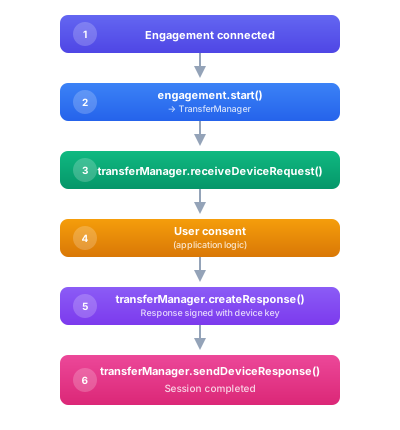
The key steps: start the transfer, receive the request, get consent, build and send the response, clean up. The finally block ensures the engagement is closed even if something goes wrong mid-transfer.
Transfer Instance Tracking
The engagement manager keeps a map of active TransferInstance objects, each representing an in-progress transfer. This is useful for UIs that need to show transfer progress or handle multiple concurrent sessions (e.g., a server verifier handling several holders at once).
- Android/Kotlin
- iOS/Swift
engagementManager.transferInstances.collect { transfers ->
    for ((id, transfer) in transfers) {
        val state = transfer.getCurrentState()
        println("Transfer $id: $state")
    }
}
for await transfers in engagementManager.transferInstances {
    for (id, transfer) in transfers {
        print("Transfer \(id)")
    }
}
Each TransferInstance has its own events stream and states flow if you need per-transfer granularity.
Transfer Lifecycle
Tips
- Always get user consent before sending any data. This is both a UX requirement and a regulatory one in most jurisdictions.
- Use
createResponsefor the common case. Only drop down tosignDocumentor the builder when you need custom per-document logic. - Close the engagement after the transfer completes. Resources (BLE connections, NFC listeners) are not released until you do.
- Handle transport errors. BLE disconnects, HTTP timeouts, and NFC interruptions are all possible during transfer.